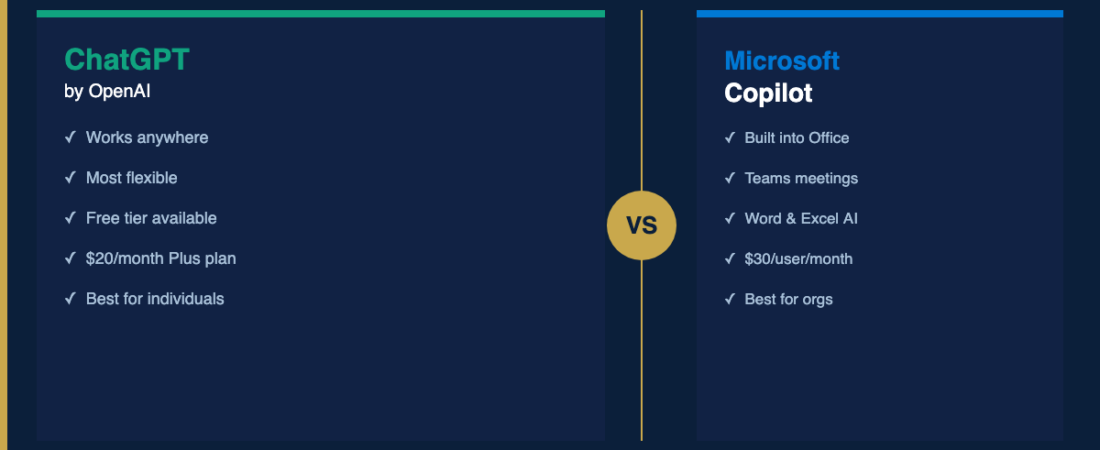
I get this question a lot. Someone hears that AI can save them time at work, they look it up, and immediately hit a wall: there are two tools that keep coming up, ChatGPT and Microsoft Copilot, and nobody clearly explains how they’re different or which one a normal person should actually use.
I’ve been using both. Here’s the honest answer.
The Short Version
ChatGPT is a general-purpose AI assistant made by OpenAI. You log in at chat.openai.com, type a question or request, and it answers. It works on any device, in any browser, with no special setup. It’s fast, versatile, and very capable.
Microsoft Copilot is Microsoft’s AI assistant, built on the same underlying technology as ChatGPT (OpenAI’s models). But it’s designed to live inside Microsoft’s products — Word, Excel, Outlook, Teams. If your workday runs on Microsoft 365, Copilot is woven into the tools you already use.
The core difference isn’t about which AI is smarter. It’s about where you do your work.
What ChatGPT Does Well
ChatGPT shines when you need a flexible thinking partner that can do almost anything:
- Write and rewrite: Emails, reports, cover letters, blog posts, social captions. Give it a rough draft and ask it to tighten, clarify, or shift the tone.
- Explain things: Ask it to explain a concept, a contract clause, or a spreadsheet formula in plain language.
- Brainstorm: Give it context and ask for ideas — for a project, a presentation angle, a menu, a business strategy.
- Summarize: Paste in a long article, email thread, or document and ask for the key points.
- Answer questions: A smarter, more conversational alternative to searching Google.
ChatGPT’s big advantage is flexibility. It doesn’t care what apps you use or what industry you’re in. It meets you wherever you are.
What Microsoft Copilot Does Well
Copilot’s advantage is integration. Instead of copying and pasting between apps, Copilot works directly inside the tools you already have open:
- In Word: Ask Copilot to draft a section, rewrite a paragraph, or summarize a long document — all without leaving Word.
- In Excel: Ask Copilot to analyze your data, explain a formula, or create a chart. No need to write the formula yourself.
- In Outlook: Copilot can summarize a long email thread, draft a reply, or flag action items buried in your inbox.
- In Teams: Copilot can take meeting notes, summarize what was discussed, and list action items — in real time while the meeting is still happening.
That last one is genuinely impressive. If you spend significant time in Teams meetings, the ability to ask “what have we decided so far?” mid-call and get an accurate summary is a real time-saver.
The Price Difference (It’s Significant)
This is where the comparison gets more concrete.
ChatGPT:
- Free tier: available, limited features and slower model
- ChatGPT Plus: $20/month — access to GPT-4o, the strongest model, plus image generation and other features
Microsoft Copilot:
- Copilot (free, web-based): available at copilot.microsoft.com — a capable chatbot, similar to free ChatGPT
- Microsoft 365 Copilot (in-app integration): $30/month per user — this is the one that works inside Word, Excel, Outlook, and Teams
The free version of Copilot at copilot.microsoft.com is essentially a ChatGPT alternative — it’s useful but doesn’t plug into your Microsoft apps. To get the in-app features that make Copilot genuinely powerful, you need the $30/month plan.
That’s a meaningful difference. ChatGPT Plus at $20/month gives you a lot. Microsoft 365 Copilot at $30/month gives you deep integration — but only if you’re already using Microsoft 365 daily.
The Real Question: What Does Your Workday Look Like?
This is how I’d think about it:
Choose ChatGPT if:
- You use a mix of tools (Google Workspace, Apple apps, browser-based software)
- You want one assistant that can help with anything — writing, research, planning, explaining
- You’re just getting started with AI and want the easiest, most flexible starting point
- You work independently or in a small team without a Microsoft 365 subscription
Choose Microsoft Copilot if:
- Your entire work life runs on Microsoft 365 — Teams, Outlook, Word, Excel, PowerPoint
- Your company already pays for Microsoft 365 and is offering Copilot as an add-on
- You spend a lot of time in meetings and want automatic notes and summaries
- You want AI that works directly inside your documents without switching tabs
Can You Use Both?
Yes, and some professionals do. ChatGPT for open-ended work — brainstorming, writing from scratch, answering questions. Copilot for in-document tasks — summarizing a Word report, analyzing Excel data, cleaning up an email in Outlook.
But if I had to pick just one, and I wasn’t already deep in a Microsoft 365 environment, I’d start with ChatGPT Plus at $20/month. It’s the more versatile tool, and the $20 price point gives you access to genuinely powerful AI. You can always add Copilot later if your workplace moves in that direction.
One Thing They Both Get Wrong
Neither tool replaces your judgment. Both will occasionally get things wrong — misstate a fact, misread the tone you’re going for, or produce something that sounds plausible but isn’t quite right.
The professionals who get the most out of these tools treat them like a capable first draft, not a final answer. Read what comes back, fix what’s off, and you’ll save significant time. Publish it without looking — and you’ll occasionally regret it.
The Bottom Line
ChatGPT and Microsoft Copilot are both good tools. They use similar underlying technology and can both help you write faster, think more clearly, and do more in less time.
The difference is where they live. ChatGPT lives in its own tab, ready for anything. Copilot lives inside Microsoft 365, ready to help inside your existing workflow.
If you’re new to AI tools and not sure where to start, ChatGPT is the easier on-ramp. Try the free version, then upgrade to Plus if you’re using it regularly. Once you have a feel for how AI can actually help you — then you can decide whether Copilot’s Microsoft integration is worth the extra cost.
Want to see ChatGPT in action first? Start with my guide on how to use ChatGPT at work as a non-tech professional. It walks you through the basics in plain language — no tech background required.