If you spend more than an hour a day writing emails, you are not alone. For most working professionals, email is one of the biggest drains on time and mental energy — and it never seems to get easier. You stare at a blank compose window, trying to find the right tone for a sensitive message, or you rewrite the same update for the third time because it still doesn’t sound quite right.
Here’s the good news: AI tools like ChatGPT can dramatically cut the time you spend on email — without sacrificing quality. In fact, many professionals who have started using AI for email say their messages are clearer, more professional, and more effective than before. This guide will show you exactly how to use AI to write better emails, faster, even if you’ve never used an AI tool before.
Why AI Is Surprisingly Good at Email
You might be wondering: can an AI really write my emails? The answer is yes — and it can do it better than you might expect. Here’s why AI excels at email specifically:
- It never has writer’s block. AI generates a solid first draft in seconds, which you can edit rather than write from scratch.
- It understands tone. You can ask it to sound “professional but warm” or “direct without being rude” and it actually delivers.
- It catches rambling. AI is excellent at taking a long, wordy message and turning it into something concise and clear.
- It’s available 24/7. No matter what time you’re clearing your inbox, your AI writing assistant is ready.
The key is knowing how to ask. Unlike a search engine, AI responds to clear, specific instructions. The more detail you give, the better the result.
5 Ways to Use AI to Write Better Emails at Work
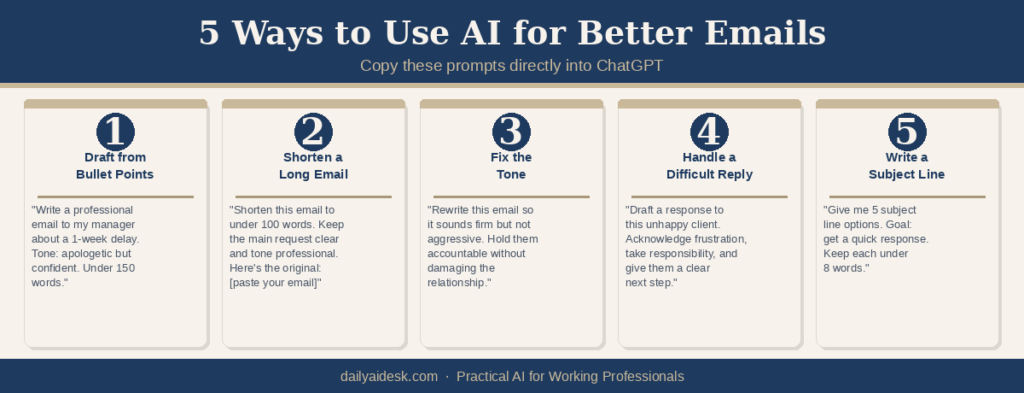
1. Draft an Email from a Few Bullet Points
This is the most popular use — and the one that saves the most time. Instead of writing an email from scratch, you jot down the key points you want to cover and let the AI do the rest.
Try this prompt:
“Write a professional email to my manager letting her know the project will be delayed by one week. Reasons: waiting on vendor, team had two sick days. Tone: apologetic but confident. Keep it under 150 words.”
The AI will produce a complete, well-structured draft in seconds. Read it over, make any tweaks, and send. What used to take 10 minutes now takes 90 seconds.
2. Shorten and Tighten a Message You’ve Already Written
We’ve all written emails that are too long. You know the kind — five paragraphs when two would do. AI is remarkable at stripping out the fluff while keeping the key information.
Try this prompt:
“Please shorten this email to under 100 words. Keep the main request clear and the tone professional. Here’s the original: [paste your email]”
This is especially useful for status updates, follow-ups, and any message where you find yourself going in circles.
3. Fix the Tone of a Message
Have you ever sent an email and worried afterward that it sounded too harsh — or too passive? AI can help you strike the right balance before you hit send.
Try this prompt:
“Rewrite this email so it sounds firm but not aggressive. I want to hold the other person accountable without damaging the relationship. Here’s what I wrote: [paste your email]”
You can also use AI to make a message sound warmer, more formal, simpler for a non-technical audience, or more persuasive — whatever the situation calls for.
4. Respond to a Difficult or Sensitive Email
Some emails are hard to answer. A complaint from a client, a confrontational message from a colleague, feedback that stings a little. These are the messages we tend to procrastinate on — or dash off impulsively.
Try this prompt:
“I received this email from a client who is unhappy with a delay. Help me draft a response that acknowledges their frustration, takes responsibility without over-apologizing, and gives them a clear next step. Here’s their message: [paste the email]”
Using AI as a thinking partner for tricky messages gives you a thoughtful first draft — and often helps you see the situation more clearly too.
5. Write a Subject Line That Actually Gets Opened
A great subject line is the difference between an email that gets read and one that gets ignored. AI can generate multiple options so you can choose the one that fits best.
Try this prompt:
“Give me 5 subject line options for this email. The goal is to get a quick response. Keep each one under 8 words. Here’s the email body: [paste your email]”
Tips for Getting the Best Results from AI Email Writing
A few simple habits will make your AI email drafts significantly better from the start:
- Be specific about your audience. “Write to my direct report” gives better results than just “write an email.”
- Mention the desired outcome. What do you want the reader to do after reading it? Include that in your prompt.
- Give it a word or length target. AI can generate anything from a three-sentence reply to a detailed briefing — just tell it what you need.
- Always review before sending. AI drafts are a starting point, not a final product. Add your personal touch, verify any facts, and make it sound like you.
Where to Start: The Free Tool You Already Have Access To
The easiest place to start is ChatGPT — the free version is more than enough for email writing. Open it in a separate browser tab while you’re working through your inbox. Copy and paste the email you want to write or improve, type your prompt, and you’ll have a polished draft in under a minute.
If you want to learn more about how to write effective prompts (the instructions you give to AI), OpenAI’s ChatGPT overview page is a good place to start.
Start Small, Save Big
You don’t have to overhaul the way you work overnight. Start with one email today — pick a message you’ve been putting off, or one that feels harder to write than it should be. Paste it into ChatGPT with a simple instruction, and see what comes back.
Most people are surprised at how good the first draft is. And once you’ve seen it work once, using AI for email becomes second nature. The average professional spends 28% of their workweek on email. Even cutting that by a quarter adds up to hours saved every single week — time you can spend on work that actually moves the needle.
AI won’t replace your judgment, your relationships, or your voice. But it can handle the heavy lifting of getting words on the page — so you can focus on what really matters.
Which AI Tool Should You Use for Email?
ChatGPT is what this guide is built around — it’s free, flexible, and more than enough for most professionals. But it’s not the only option. Independent testing and expert reviews have identified the top AI tools specifically for email writing in 2026. Here’s how they compare:
- Claude — Scored highest in independent communication expert testing, praised for emails that feel natural, warm, and less robotic than competitors. Particularly strong for complex or emotionally sensitive messages.
- ChatGPT — The most recommended tool overall. Flexible, direct, and excellent for sales and persuasive emails. Requires some prompt-writing skill to get the best results. Free tier available; Plus version is $20/month.
- Grammarly — Best if you prefer to write your own emails and polish them afterward. Real-time tone and clarity suggestions, integrates with most platforms. Ideal for professionals who want to improve their writing rather than automate it.
- Gmelius — Best for teams. Its AI assistant works inside Gmail, learns your writing style, and helps manage shared inboxes and automated workflows. $19/user/month.
- Superhuman — Built for speed. Executives and high-volume email users can generate full emails from a few words and clear their inbox in seconds. $30/user/month.
For most working professionals, ChatGPT (free) or Claude will cover everything you need. Whatever tool you choose, the key principle stays the same: use AI to handle the heavy lifting of the first draft, then review and personalize before you send.
References
- 15 Best AI Email Assistants for Productivity in 2026 — Gmelius
- We asked 5 AI helpers to write tough emails. One was a clear winner. — Washington Post
- 7 AI Tools That Help You Write Better Emails in 2026 — Read.ai
- Best AI Email Writers Reddit Actually Recommends in 2026
- Best AI Email Assistants (2026): Ranked & Reviewed — Efficient.app