
Here’s something I didn’t expect to be doing in my 50s: building software.
My career has taken a few sharp turns. I spent years in corporate strategy — assessing the commercial viability of cross-border mergers and acquisitions, juggling complex KPIs and high-stakes financial analysis. Then I walked away and became a professional chef. For 17 years, I cooked, developed recipes, and ran multiple kitchens. Now I’m building restaurant management software. Without a coding background.
ChatGPT is a big part of how that’s even possible.
The moment it clicked for me wasn’t some grand revelation. I sat down one afternoon and, instead of Googling “how to build software,” I told ChatGPT everything: what I knew (restaurant operations, business analysis), what I didn’t know (programming), how many hours a week I could realistically work on this, and what I wanted to build. Instead of a generic answer, I got a real conversation — one that helped me scope a concrete plan from a vague idea.
That’s what this guide is about. A practical, plain-English walkthrough of how to use ChatGPT at work for non-tech professionals — no coding background, no prior AI experience required. Just real steps that work.
Why Most People Struggle with ChatGPT at First
Most people open ChatGPT and type something like “help me with my email” or “explain AI to me.” They get back a decent but generic response, shrug, and go back to doing things the old way.
The problem isn’t ChatGPT. It’s the approach. We’re used to search engines — you type a few words, you get results. ChatGPT isn’t a search engine. It’s more like a capable colleague who needs context to give you genuinely useful advice.
The less context you give it, the more generic the output. That’s the whole game.
The Real Secret: Give ChatGPT Context About You
This is the single most effective thing a beginner can do. Before asking ChatGPT anything work-related, spend two minutes telling it who you are. Here’s the kind of context that makes a real difference:
- Your professional background and areas of expertise
- What you’re trying to accomplish
- What you don’t know or aren’t good at
- How much time or resource you have
- What “success” looks like for this task
Think of it like briefing a new hire. The more they understand your situation, the more relevant their help.
For me, that meant telling ChatGPT I had deep expertise in business analysis and restaurant operations, zero coding background, about 10 hours a week to spare, and a goal of building a practical restaurant management tool. The responses I got back were genuinely useful — not generic AI advice, but a scoped plan I could actually act on.
Step 1: Get Set Up (It’s Free)
You don’t need to pay anything to start. Go to chat.openai.com and create a free account with your email. The free version gives you access to GPT-4o, which is more than capable for everyday work tasks.
If you find yourself using it daily, the Plus plan ($20/month) is worth considering for faster responses and access to newer features — but start free and see if it fits your workflow first.
One practical tip: use ChatGPT in a browser on a desktop or laptop, not your phone. You’ll type more, think more clearly, and find it much easier to copy and use what it gives you.
Step 2: Your First Useful Work Conversation
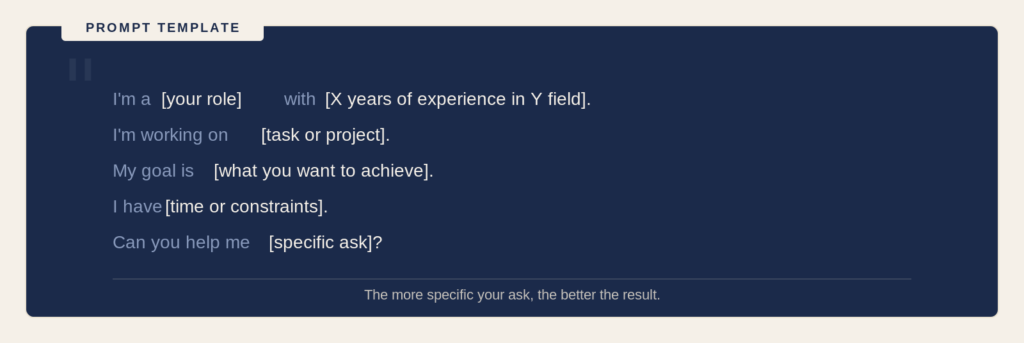
Open a new conversation and start with a context block. Here’s a simple template you can adapt:
“I’m a [your role] with [X years of experience in Y field]. I’m working on [task or project]. My goal is [what you want to achieve]. I have [time or constraints]. Can you help me [specific ask]?”
The more specific your ask, the more useful the result. “Help me write an email” gets you something generic. “Help me write a follow-up email to a potential client who expressed interest two weeks ago but hasn’t responded — professional tone but warm” gets you something you can actually send.
5 Ways to Use ChatGPT at Work Starting Today
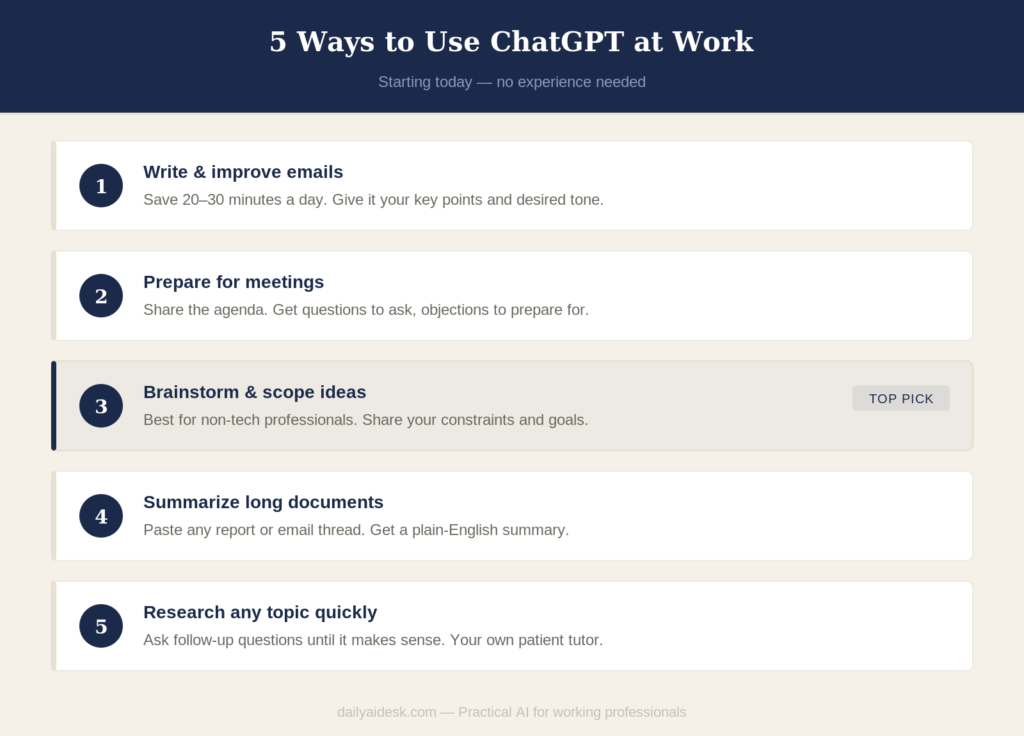
You don’t need to reinvent your workflow. Here are five practical uses that deliver real value immediately.
1. Write and improve emails. Give it your draft or just the key points, specify the tone you want, and ask it to write or polish. This alone saves most people 20–30 minutes a day.
2. Prepare for meetings. Share the agenda or context. Ask ChatGPT to help you think through the right questions to ask, likely objections to prepare for, or a brief summary to share in advance.
3. Brainstorm and scope ideas. When you have a vague idea and need to think it through, ChatGPT is a tireless thinking partner — especially when you share your real constraints and goals. This is personally where I get the most value.
4. Summarize long documents. Paste a long report, article, or email thread and ask for a plain-English summary. A huge time-saver when you’re dealing with information overload.
5. Research a topic you don’t know. Ask it to explain something in plain language, then ask follow-up questions until it actually makes sense. It’s like having a patient tutor available any time.
Common Mistakes Beginners Make
A few things to avoid as you get started:
Vague prompts. The more specific you are, the better the results. If the first response isn’t what you needed, give it more context and try again. Don’t give up after one miss.
Trusting everything it says. ChatGPT is helpful but not infallible. It can be wrong, outdated, or confidently vague. Always sanity-check anything important — especially facts, numbers, or anything legal or financial.
Treating it like a one-shot tool. ChatGPT responds well to feedback within the same conversation. If the answer misses the mark, say so: “That’s not quite what I meant — I’m looking for X instead.” It will adjust.
What ChatGPT Can’t Do
To be clear-eyed about it: ChatGPT doesn’t know your business, your clients, or your specific situation unless you tell it. It doesn’t replace your judgment or your domain expertise. And it can — and does — make things up, confidently and without warning.
Use it as a starting point and a thinking partner. Not the final word on anything that matters.
Frequently Asked Questions
Is ChatGPT free to use at work?
Yes — the free version of ChatGPT (available at chat.openai.com) gives you access to GPT-4o and is more than enough to get started with everyday work tasks like email writing, meeting prep, and research. A paid Plus plan ($20/month) is available if you need faster responses or access to newer features, but it’s entirely optional, especially when you’re just getting started.
Is it safe to use ChatGPT for work tasks?
Generally yes, with one important caveat: never paste sensitive information into ChatGPT. That means no client names tied to confidential data, no financial records, no passwords, and no proprietary company information. Use it for thinking, drafting, and structuring ideas — but keep the sensitive specifics out. If your company has a policy on AI tools, check it first. Many organizations now have approved AI tools for internal use.
Do I need any technical background to start using ChatGPT at work?
Not at all. If you can write an email, you can use ChatGPT. The entire interface is a text conversation — you type, it responds. No coding, no installations, no technical setup beyond creating a free account. The professionals who get the most out of it aren’t the most technical ones. They’re the ones with the most specific, real-world context to share — which is exactly the advantage that experienced professionals have.
The Bottom Line
If you’ve been curious about using ChatGPT at work but haven’t known where to start, start here: open a conversation, tell it who you are and what you’re working on, and ask it something specific.
The learning curve is shorter than you think. And the payoff — especially for experienced professionals who have deep expertise but feel left behind by the pace of technology — is real.
That’s why I built this blog. Not to talk about AI in theory, but to share what actually works in practice, for people like us.